Narconon
Create and Schedule Your Email Newsletter
An email newsletter can be a powerful tool to regularly and consistently promote to your reaches, graduates and their families and supporters. Sending out a an email newsletter can have a number of benefits for businesses and organizations, including:
- Building and maintaining relationships: Email newsletters provide a regular and consistent way to stay in touch with past reaches, graduates, or supporters. By providing valuable content and staying fresh in their minds, your center can build stronger relationships with your public.
- Driving traffic to your center website: Including links to success stories, news and articles in your email newsletters can drive traffic to your center website.
- Increasing brand awareness: Consistently sending out email newsletters helps build brand awareness and recognition.
- Growing your subscriber list: Email newsletters can be used to grow a subscriber list by encouraging readers to share with their own networks.
- Collecting data and insights: Email newsletters can provide valuable data and insights on how many people open your emails and which articles get clicked on. This can be used to improve future newsletters and overall promotional plans. This information can also help you identify what type of subject lines and articles are more popular.
A new online web application, the Email Promotion App, has been made available to make it easy for you to create and schedule email newsletters with a ready-made template tailored for your Narconon center.
How to Create Your Email Newsletter
- From the Dashboard of the ABLE Portal, select the Email Promotion App button.
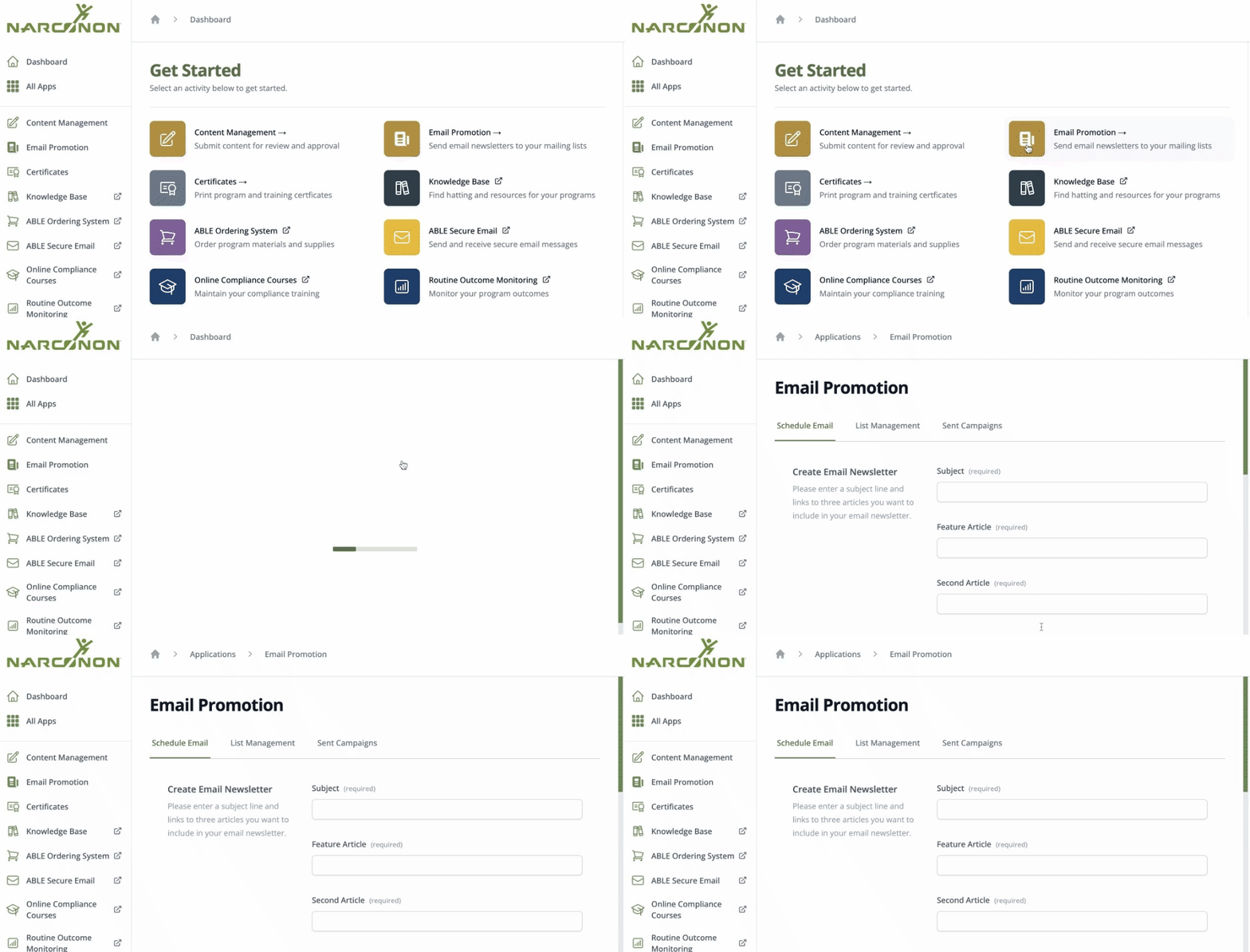
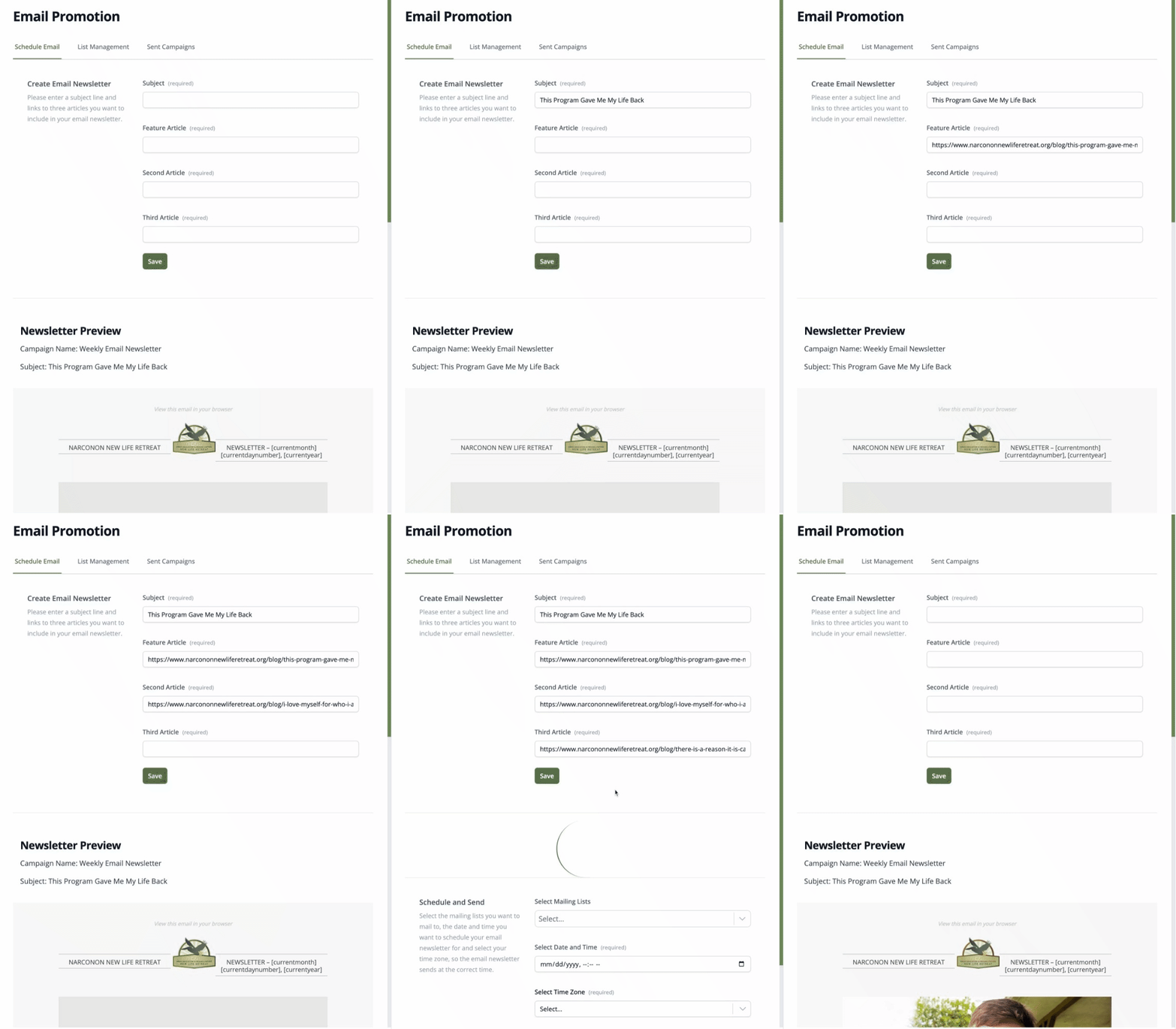
By default, the Schedule Email tab is selected. Start in the section Create Email Newsletter, and type the subject of your Email Newsletter (this will appears as the “Re” line of the email). Create a concise, descriptive, and engaging subject line that entices viewers to click and read more. Your subject line should clearly convey the content of the email and stimulate the reader's interest.
Open a new tab or window in your browser and navigate to the blog section of your center website, e.g. https://www.narcononarrowhead.org/blog/
Open the blog article that you would like to be the feature article of your newsletter and select and copy the URL from the address bar of your browser.
Go back to the Create Email Newsletter section in the ABLE Portal and paste the URL in the form field labeled Feature Article.
Repeat steps 5 and 6 to select the blog articles you would like to use for your second and third articles in the fields labeled Second Article and Third Article.
Once you have completed setting up your email newsletter, click the Save button to generate your email newsletter.
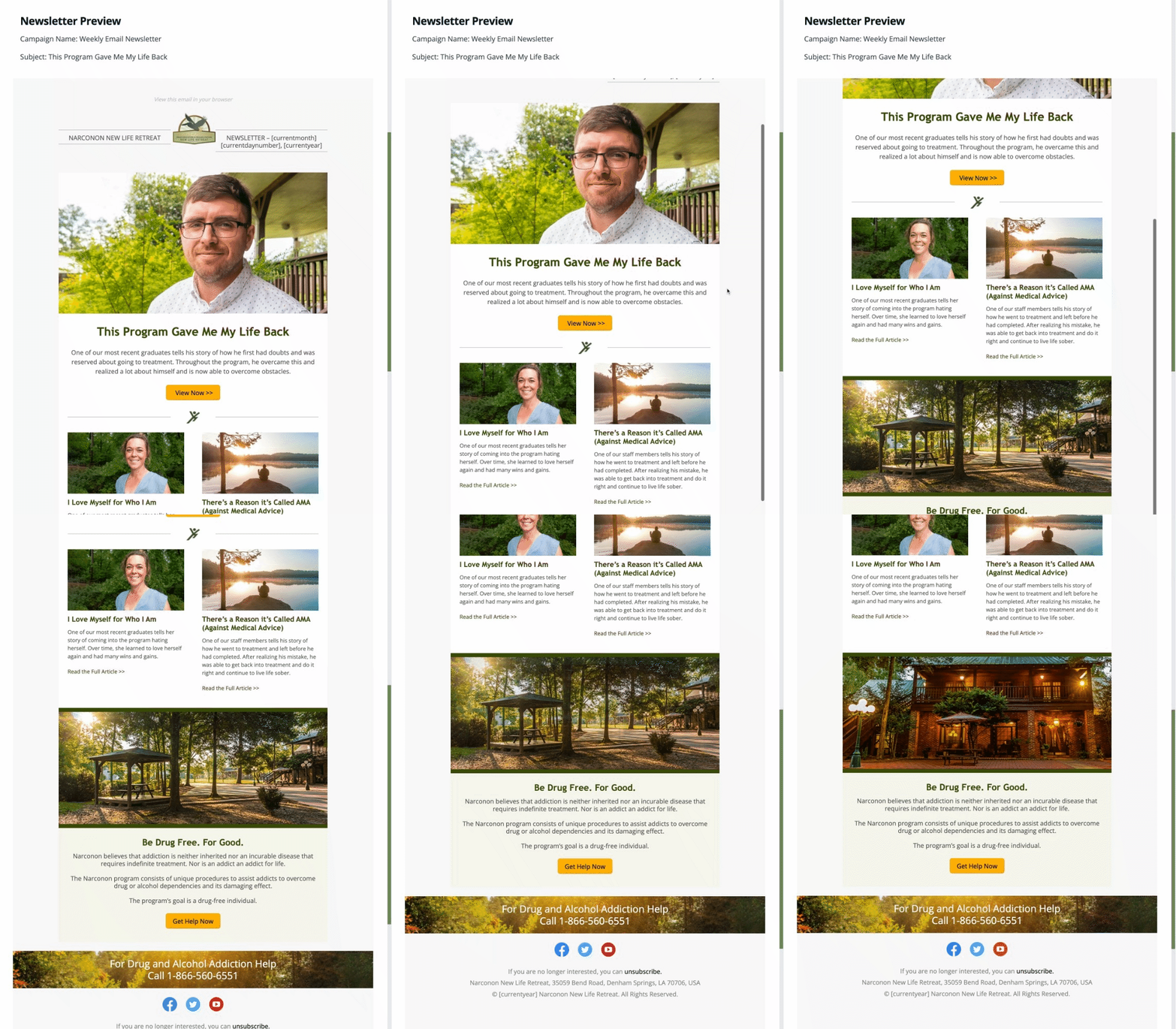
- Preview your email newsletter by scrolling down to the Newsletter Preview section.
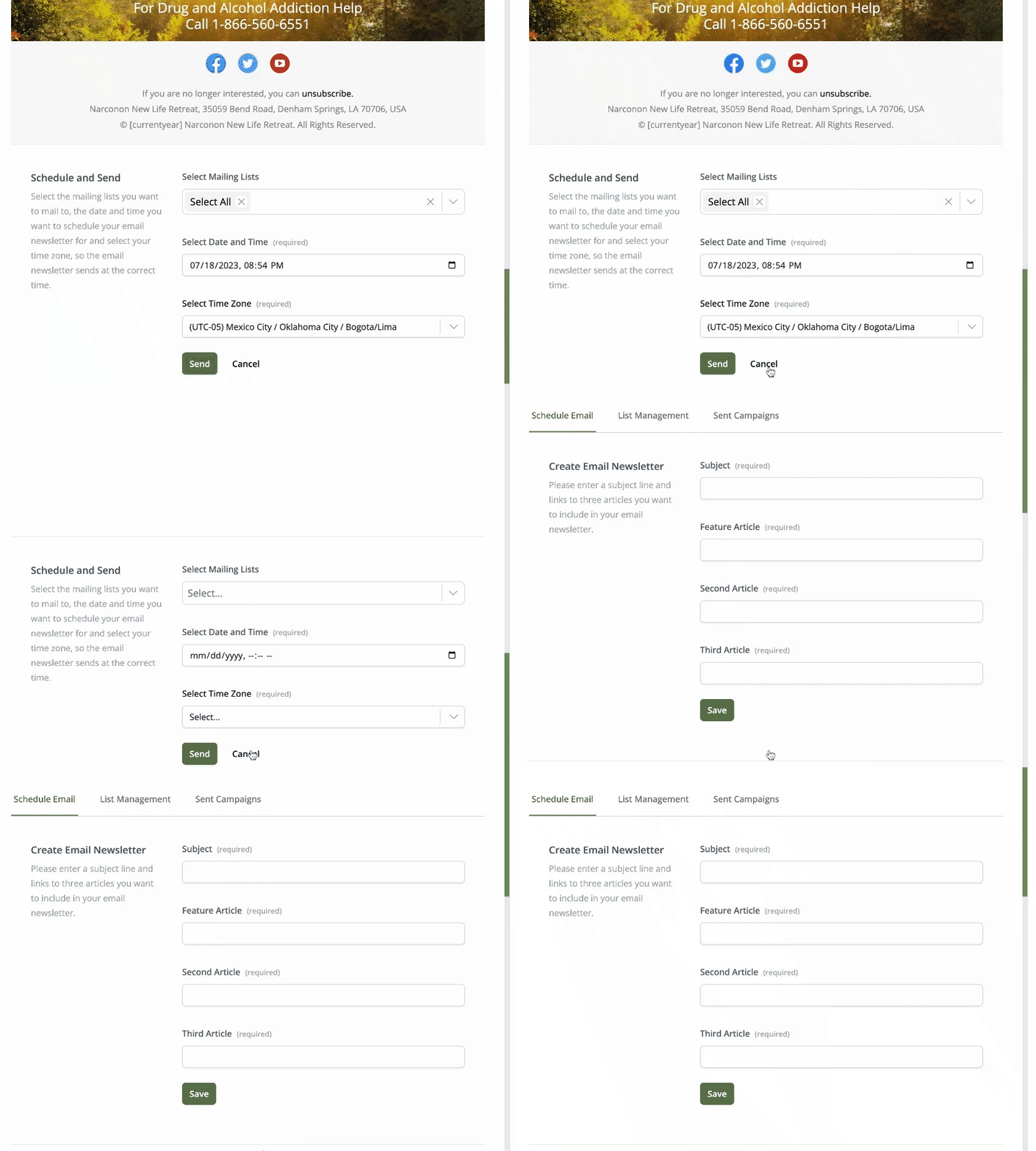
- If for you any reason you wish to reset your settings and start over, refresh your brower or scroll to the bottom of the page and select Cancel.
How to Schedule and Send Your Email Newsletter
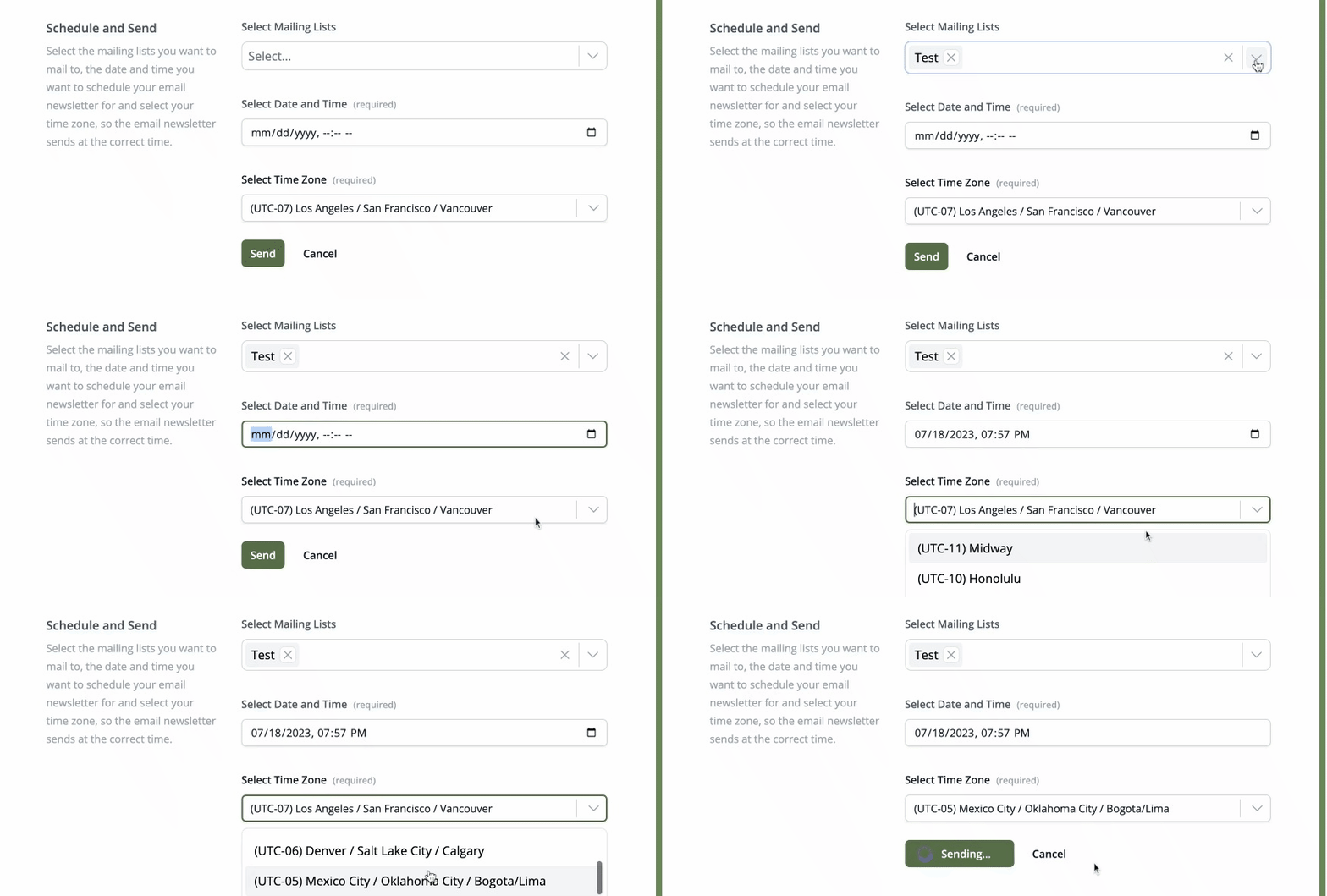
Once you have generated the preview of your email newsletter, scroll past the preview to the bottom of the page to the Schedule and Send section.
Select the mailing lists you want to send to. In most cases this will be all your lists. You can use the checkbox Select all lists to select all the lists at once.
Set the date and time you want to send your Email Newsletter.
Select the timezone you are in so your Email Newsletter is sent out at the correct time.
Once all the settings have been properly set, select the Send button.
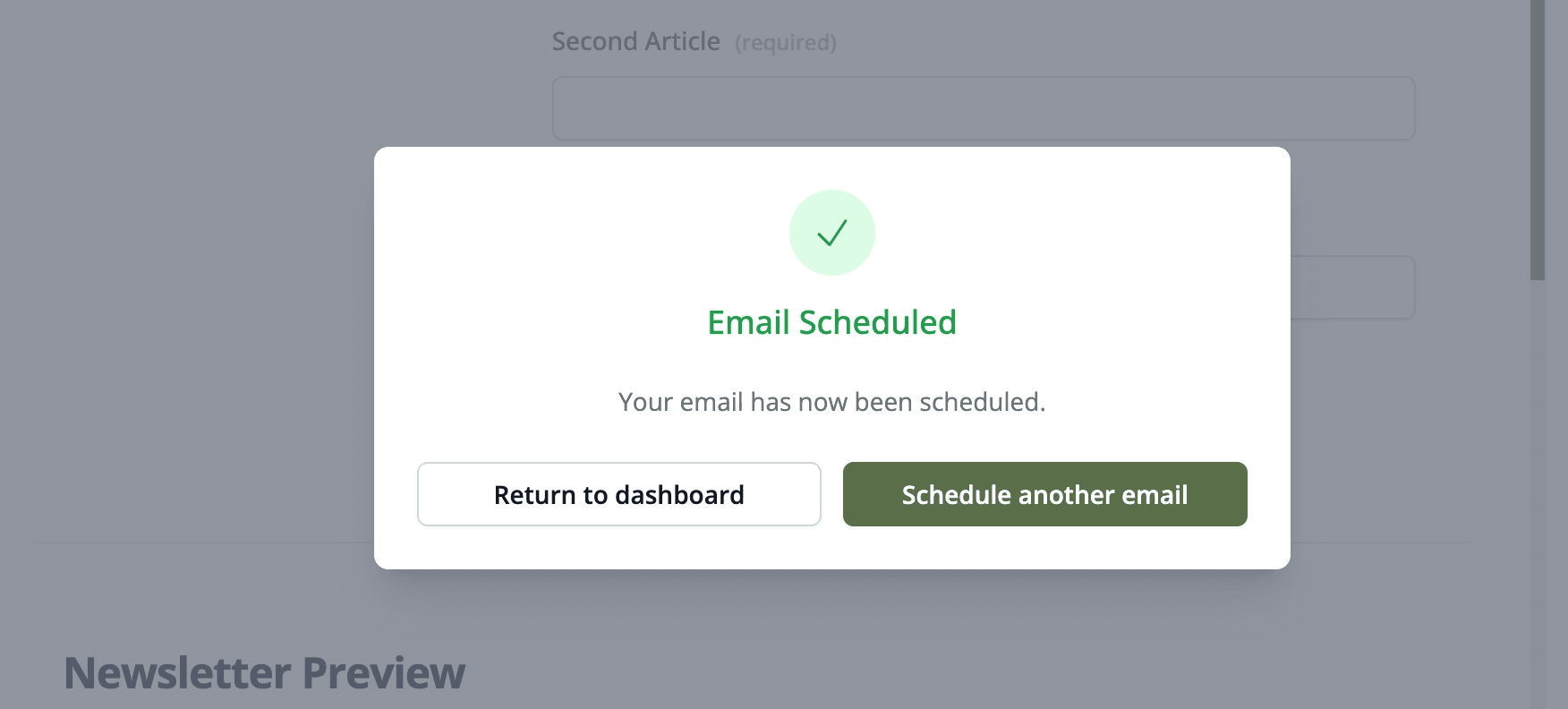
- Once your email has been successfully scheduled, you will see a dialogue box confirming that your email has been scheduled.
How to Manage Your Lists
To add or remove subscribers to your list select the List Management tab at the top of the page of the Email Promotion App.
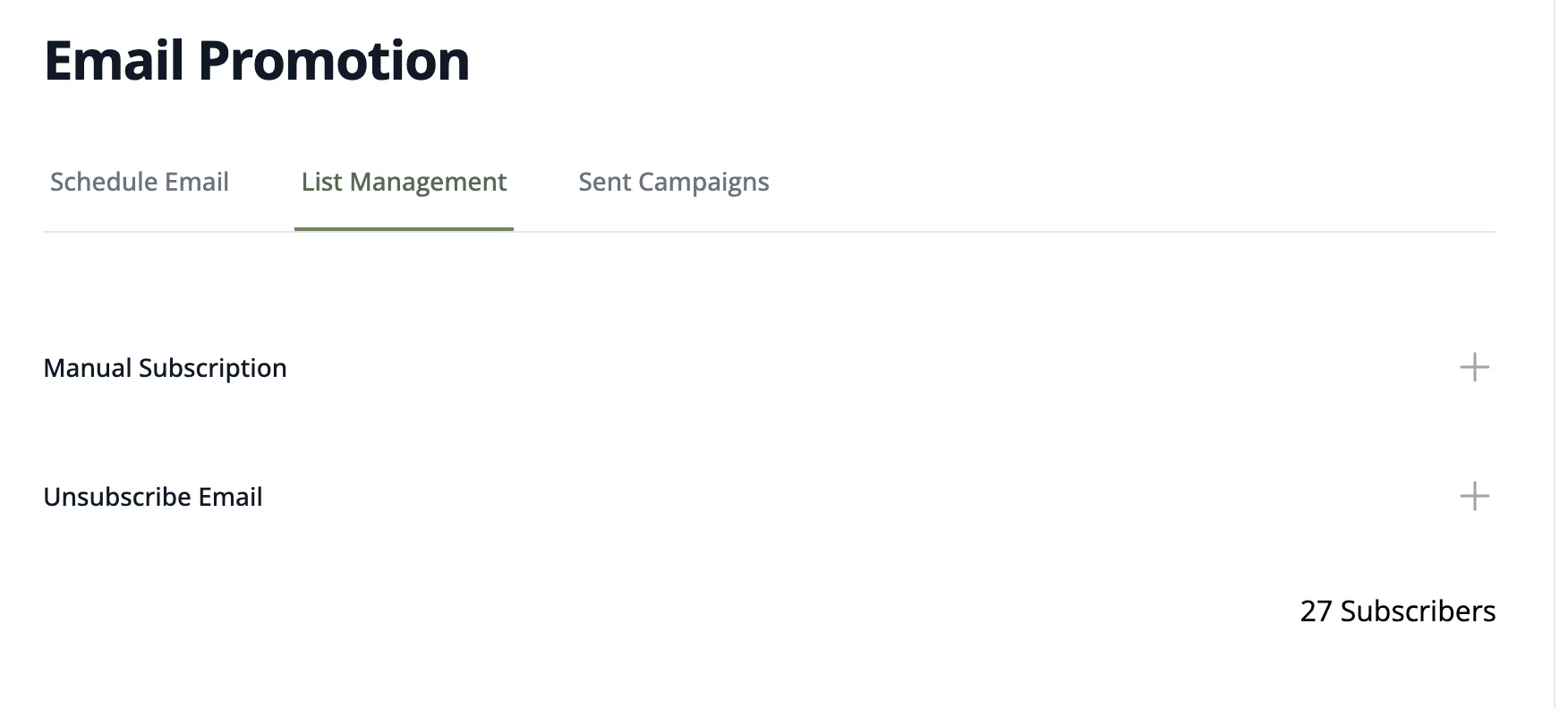
In this section, you have two options:
• Manual Subscription • Unsubscribe Email
Manual Subscription
Here you can manually add subscribers one by one to your email lists:
Fill out the required fields:
- Choose the list you want to add the email address to by making a selection from the drop-down list in List, and
- Copy and paste or type the email address you wish to add.
The following fields are optional, but if you have the information, it is recommended you add it, as then you will be able to use this for email customization in the future:
- Type or copy and paste the person's Full Name.
- Category: Select which type of public the person is, e.g. Graduate, Newsletter Subscriber
- Choose their language by filling out Language.
- Choose their country by filling out Country.
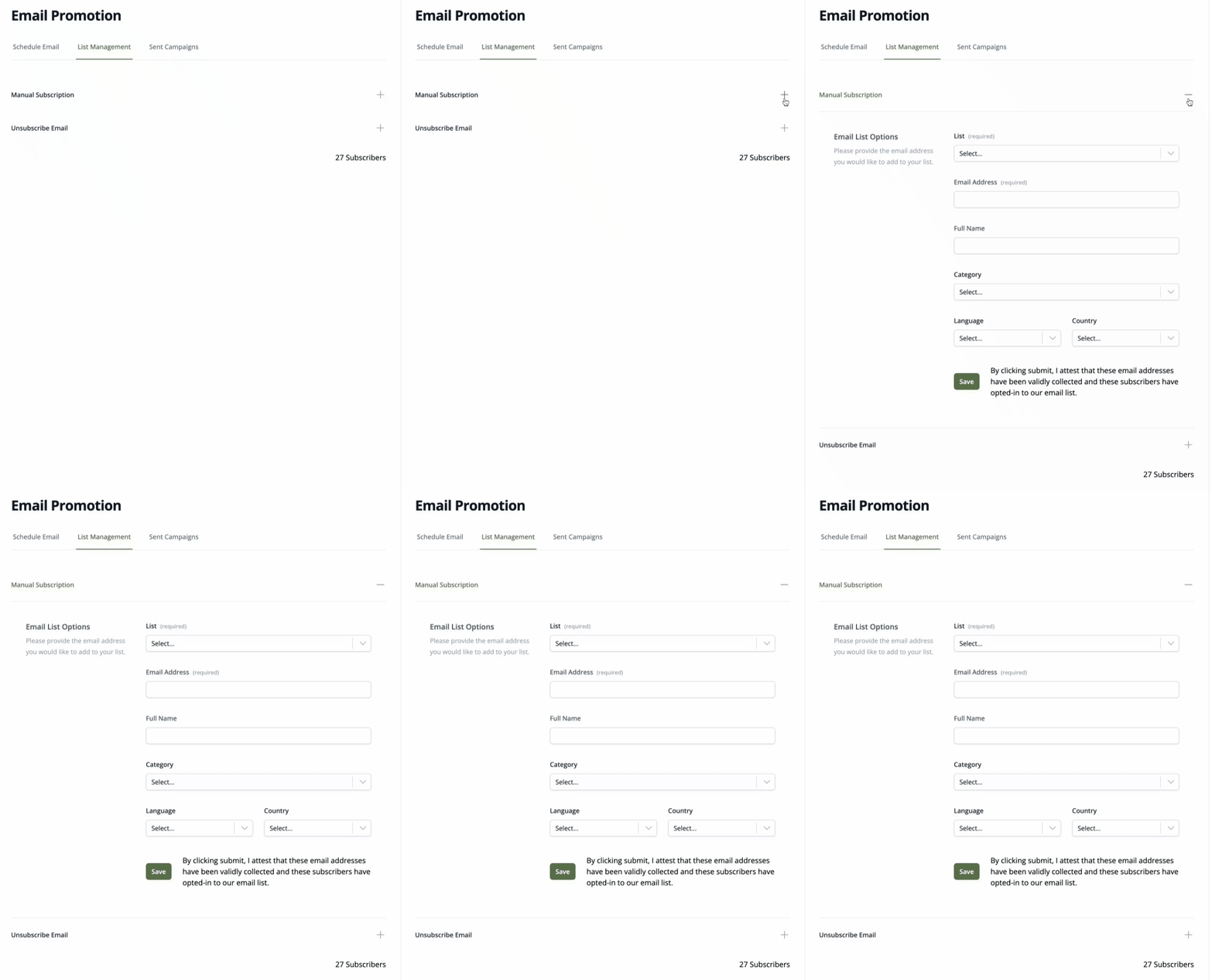
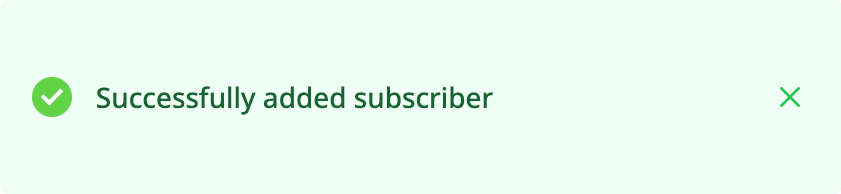
- Once you have filled out the required information, select the Save button to add the subscriber to your lists. You will get a notifcation that the subscriber was successfully added.
Unsubscribe Email
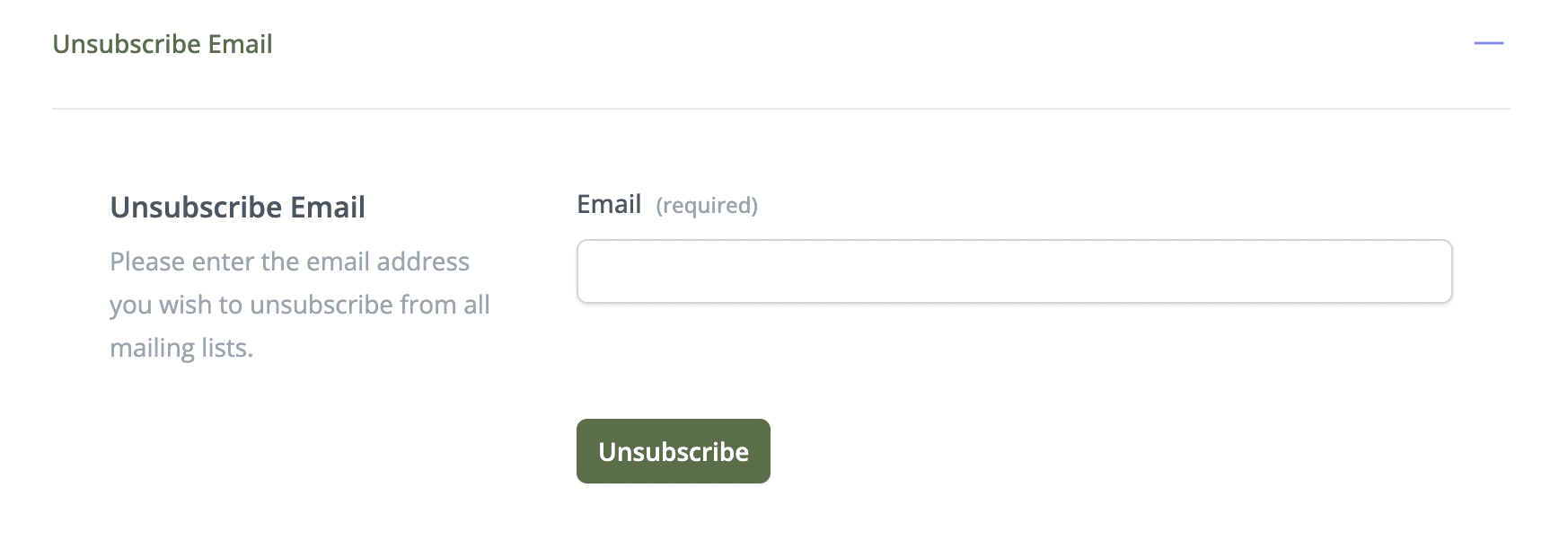
If a public wants to Unsubscribe from your lists, they can do so in the Email Newsletter they received by clicking the Unsubscribe link located at the bottom of the email. However, if they contact you directly asking to unsubscribe, you can manually unsubscribe them by selecting Unsubscribe Email in List Management.
- Type or copy and paste the email to unsubscribe.
- Select the Unsubscribe button.
- If the email was in your list and was successfully unsubscribed, you will get a notification that the email was successfully unsubscribed.
Email Statistics
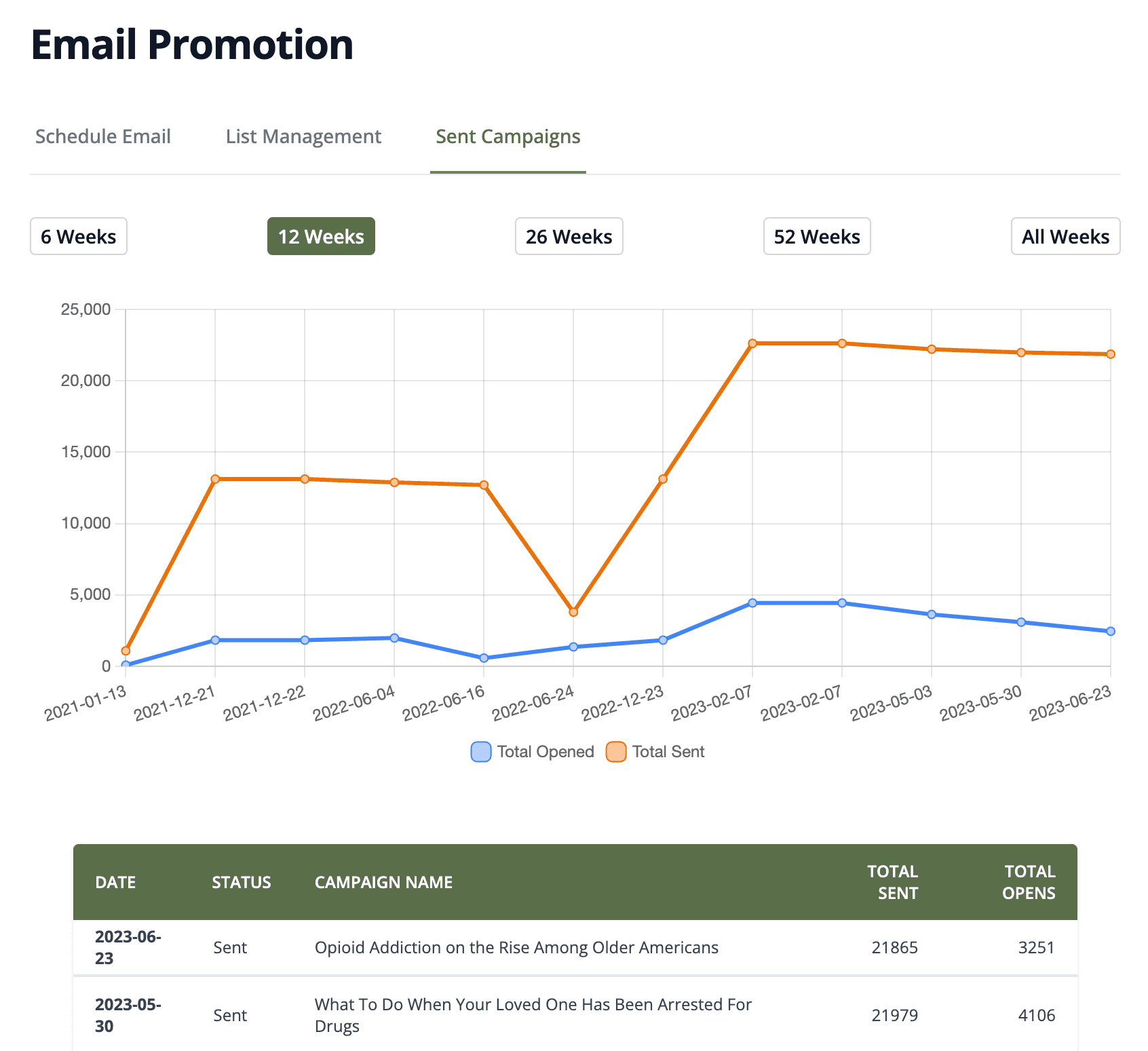
Each email newsletter you send is referred to as an "email campaign." To view the statistics for the total number of emails sent and the number of emails that were opened for each email campaign, select the Sent Camapigns tab at the top of the Email Promotion App. This will display a graph and list of the last email campaigns sent. You can select the number of weeks you wish to display.
Questions and Support
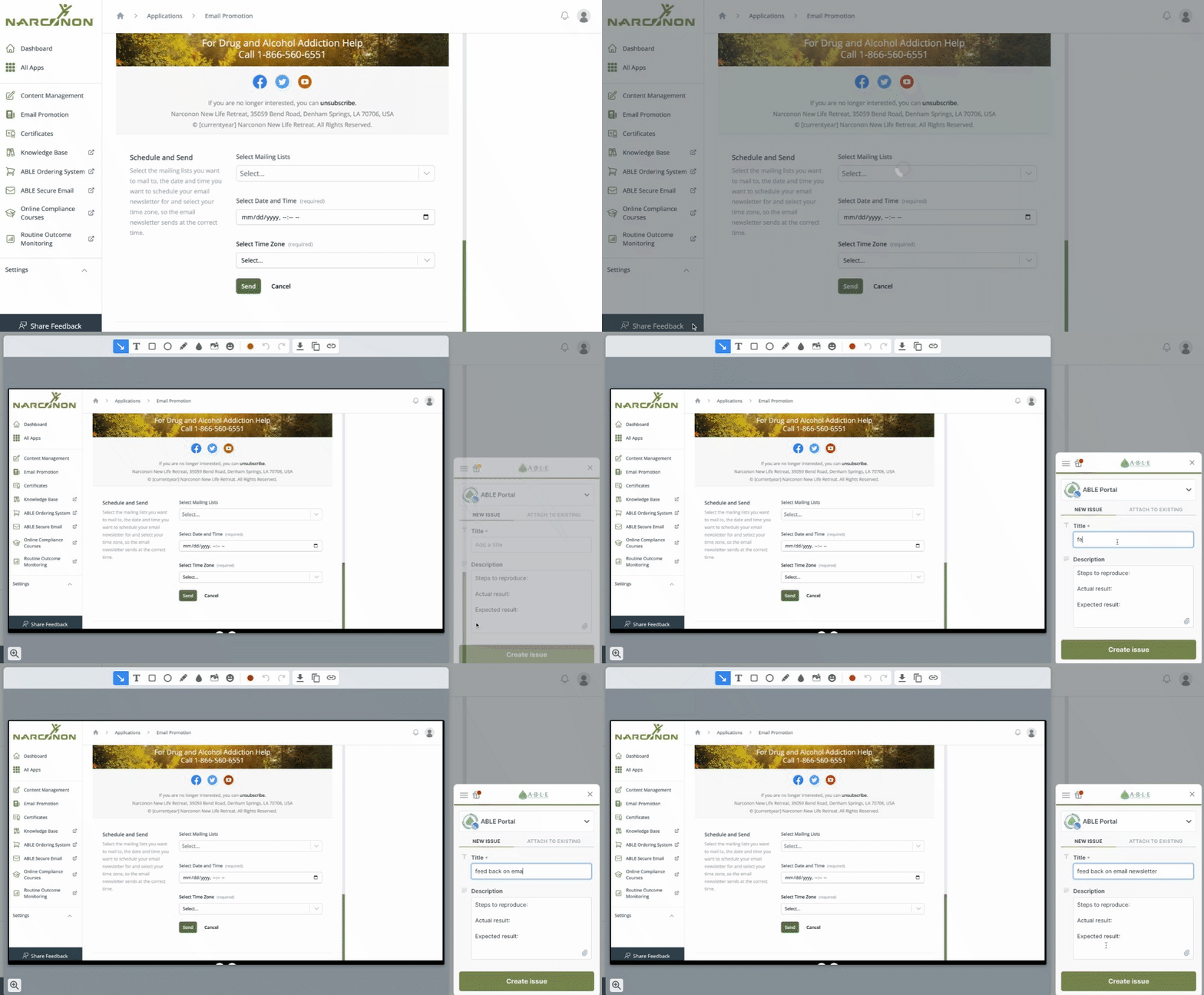
For questions, support or requests, you can leave feedback by selecting the green Share feedback button located on the left side of the ABLE Portal window. All feedback submitted will be reviewed and handled as soon as possible.
Summary
Overall, email newsletters can be an effective way to engage and communicate with your public, build brand awareness, and drive traffic to your center's website. Use the new Email Promotion App to do so!